
Download MobiMover – Free iPhone & iPad Data Transfer Tool for Mac
Overview
MobiMover, the trial version from EaseUS, is a lightweight yet powerful data‑transfer and backup solution designed specifically for macOS users who need a seamless bridge between their iPhone, iPad, or iPod touch and a computer. In an era where iTunes has become cumbersome and often unreliable, MobiMover positions itself as the best alternative, offering a free, secure, and user‑friendly interface that lets you move photos, music, videos, contacts, messages, and even WhatsApp chat histories with just a few clicks. The tool not only supports one‑way transfers from iOS devices to your Mac but also enables reverse copying, making it an all‑in‑one solution for personal backups, media migration, and content sharing across devices.
Beyond simple file transfer, MobiMover incorporates a built‑in media downloader that can fetch videos and music from the internet directly into your iOS device or Mac, turning your computer into a personal media hub. The backup feature creates a complete snapshot of your device, which can be restored instantly if you ever encounter a hardware failure, accidental data loss, or a system update gone wrong. What truly sets MobiMover apart is its WhatsApp export capability: you can extract individual chats, group conversations, attachments, and even embedded media, then store them on your Mac for future reference or legal compliance.
Because the application is built on a trial model, users can evaluate the core functionalities without any upfront cost. The free version includes unlimited transfers for common file types, while premium upgrades unlock advanced options such as batch conversion of HEIC to JPG, video‑to‑MP3 conversion, and faster transfer speeds. Overall, MobiMover delivers a comprehensive, secure, and intuitive experience that satisfies both casual users and power users looking for a reliable iOS‑Mac sync tool.
Key Features & Core Benefits
- One‑click transfer of photos, videos, music, contacts, and messages between iOS devices and macOS.
- Full device backup and instant restore, protecting against accidental loss or hardware failure.
- WhatsApp chat and attachment export to Mac, with support for individual and group conversations.
- Built‑in media downloader for videos and music from popular streaming sites.
- HEIC‑to‑JPG and video‑to‑MP3 conversion tools included in the free version.
- Secure transfer using encrypted USB or Wi‑Fi connections, ensuring privacy of personal data.
- Cross‑compatible with iPhone, iPad, and iPod touch running iOS 12 or later.
- Intuitive drag‑and‑drop interface that requires no technical expertise.
- Free trial with unlimited basic transfers; premium upgrade available for advanced features.
Pros
- Completely free for essential transfers – no hidden fees.
- Fast, reliable USB and Wi‑Fi transfer speeds.
- All‑in‑one solution: backup, transfer, media download, and file conversion.
- Secure encryption protects personal data during migration.
- User‑friendly UI that even non‑technical users can navigate.
Cons
- Trial version limits some premium features such as batch conversion.
- Only available for macOS; Windows users must seek alternative tools.
- Large video files may require a stable Wi‑Fi connection for optimal speed.
- WhatsApp export does not retain original timestamp formatting in all cases.
- Occasional prompts for macOS security permissions during first launch.
Installation & Usage Guide
Getting started with MobiMover is straightforward. First, ensure your Mac runs macOS 10.13 (High Sierra) or newer; the macOS requirement is clearly listed on the official download page. Download the MobiMover trial installer, which comes as a .dmg file. Double‑click the file to mount the disk image, then drag the MobiMover icon into your Applications folder. macOS may ask you to confirm the app’s authenticity—simply click “Open” after reviewing the security prompt.
After installation, launch MobiMover from the Applications folder. The first time you open the app, you’ll be guided through a short setup wizard that requests access to your iOS device. Connect your iPhone or iPad via a USB‑C or Lightning cable, and trust the computer on the device if prompted. MobiMover will automatically detect the connected device and display a dashboard with four primary tabs: Transfer, Backup, WhatsApp, and Convert.
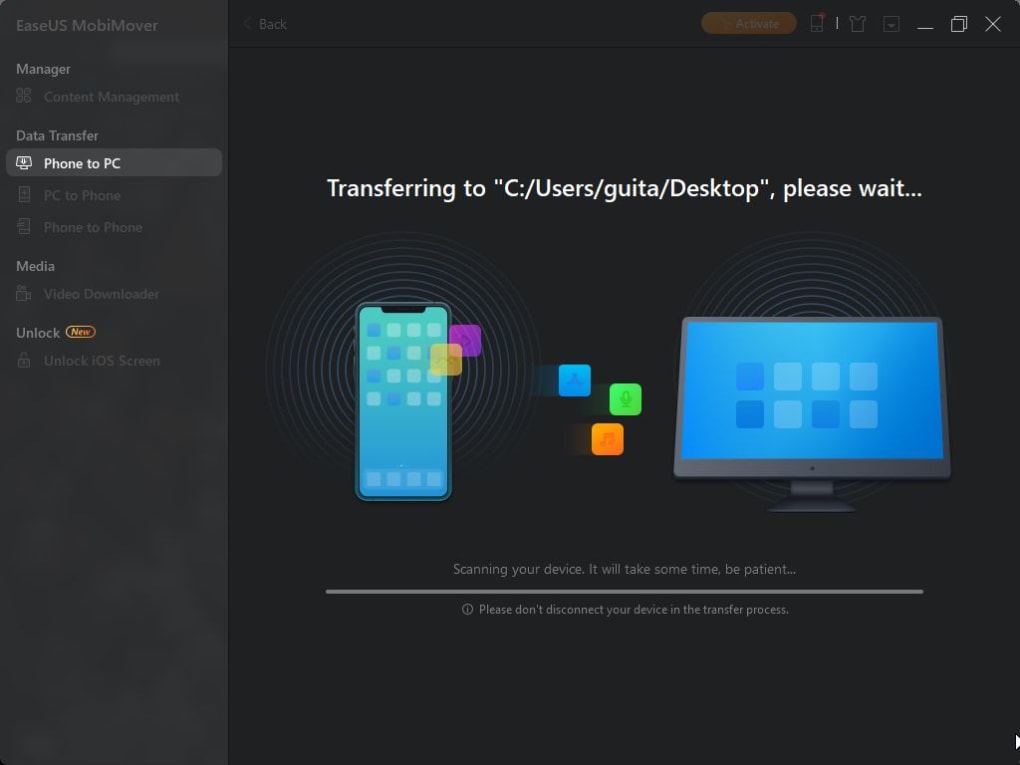
To transfer files, click the Transfer tab, then select the type of content you wish to move (e.g., Photos, Music, Videos). Use the drag‑and‑drop area or the “Add Files” button to choose items from your Mac, or click “Import from Device” to pull data directly from the iOS device. Once the selection is complete, click the bright “Transfer” button. Progress is displayed in real time, and you can pause or cancel at any point.
Backing up is equally simple. Navigate to the Backup tab, choose a destination folder on your Mac, and press “Start Backup.” MobiMover creates a compressed backup file that can later be restored via the “Restore” button. For WhatsApp users, the WhatsApp tab allows you to export chats as HTML or PDF files, preserving both text and attachments. Finally, the Convert tab lets you transform HEIC images to JPG or extract audio from videos in MP3 format, all without leaving the application.
After each session, MobiMover automatically checks for updates and notifies you of new versions. Keeping the software up‑to‑date ensures compatibility with the latest iOS releases and adds performance enhancements. In summary, installation takes under five minutes, and everyday usage is designed to be intuitive, requiring no command‑line knowledge or complex configuration.
Frequently Asked Questions
Is MobiMover really free for unlimited transfers?
Yes, the trial version allows unlimited transfers of photos, videos, music, contacts, and messages. Premium features such as batch conversion and faster Wi‑Fi transfer speeds require a paid upgrade.
Can I use MobiMover with Windows PCs?
MobiMover is currently exclusive to macOS. Windows users will need to explore other EaseUS tools or third‑party alternatives like iMazing or Dr.Fone.
Does MobiMover support the latest iOS version?
The software is regularly updated to stay compatible with new iOS releases. As of the latest update, it fully supports iOS 17 and later.
How secure is the data transfer process?
All data transferred via USB or Wi‑Fi is encrypted using industry‑standard AES‑256 encryption, ensuring that personal files and WhatsApp chats remain private during migration.
Can I restore a backup to a different iPhone?
Absolutely. MobiMover’s backup file is device‑agnostic, so you can restore the saved data to any iPhone or iPad running a compatible iOS version.
Conclusion & Call to Action
MobiMover delivers a compelling blend of simplicity, security, and versatility for Mac users who need to move, backup, or convert iOS data without the hassle of iTunes. Its free trial provides enough functionality to satisfy everyday needs, while the optional premium upgrade unlocks time‑saving features for power users. The inclusion of WhatsApp export, built‑in media downloading, and file conversion makes it a true all‑in‑one toolkit, eliminating the need for multiple separate applications.
If you’re looking for a reliable, secure, and user‑friendly solution to manage your iPhone or iPad content from a Mac, MobiMover stands out as a top choice. Download the trial today, test the core features, and decide whether the premium version fits your workflow. Remember, a solid backup strategy is essential—MobiMover makes that strategy both effortless and affordable.
Ready to streamline your iOS data management? Click here to download MobiMover for free and start transferring your photos, music, WhatsApp chats, and more in just a few clicks.
MobiMover impresses with its clean UI, fast transfer speeds, and comprehensive backup options. The only drawback is the lack of a Windows version, but for macOS users it’s an excellent free tool with optional premium upgrades.
Pros
- Free core features
- Secure encrypted transfers
- WhatsApp export capability
- Integrated media downloader
- Simple installation and usage
Cons
- Premium features locked behind paywall
- Mac‑only application
- Occasional macOS permission prompts







